Use RateMyVSO in ChatGPT or Claude
Give ChatGPT or Claude the VA's own rulebooks and real Board decisions. Before it answers a VA question, your AI looks it up on RateMyVSO and shows you where each fact came from. Free.
Being tested: Right now, RateMyVSO is testing this with a small group. If you are not in the group, the steps stop at the sign-in page. It will open to everyone soon.
Why add RateMyVSO
- Your AI stops guessing about VA rules: it reads the rating rules (38 CFR Part 4) and the VA claims manual raters use (M21-1).
- Real Board decisions: what the Board of Veterans' Appeals granted and denied, and why.
- The numbers for your condition: how often the Board granted it, what evidence the wins cited, and common secondary conditions.
- You can check every fact: the answer links to the RateMyVSO page it came from.
- Information, not advice: it never files or plans your claim.
What you need
- A free RateMyVSO account: it must sign in with Google or Apple. No account yet? You make one during the steps.
- ChatGPT or Claude: the tab for your app says which plans work.
- A computer: it is the easiest way to set it up. After that, Claude also works on your phone.
Pick your app
Add RateMyVSO to ChatGPT
Before you start: You need a paid ChatGPT plan. Plus, Pro, Business, Enterprise and Edu work. Free and Go plans cannot add it yet. Use chatgpt.com on a computer. The ChatGPT phone app cannot add it yet.
- Go to chatgpt.com on your computer. Sign in.
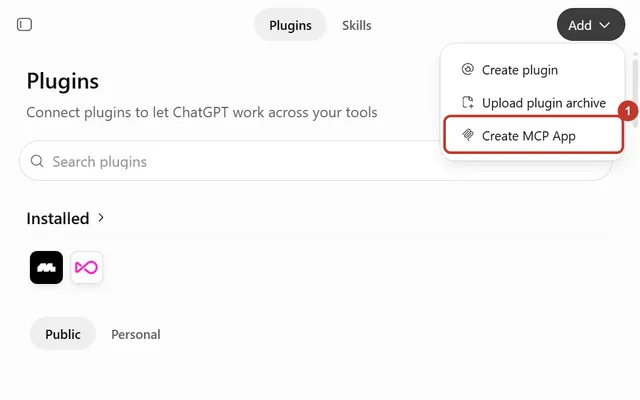
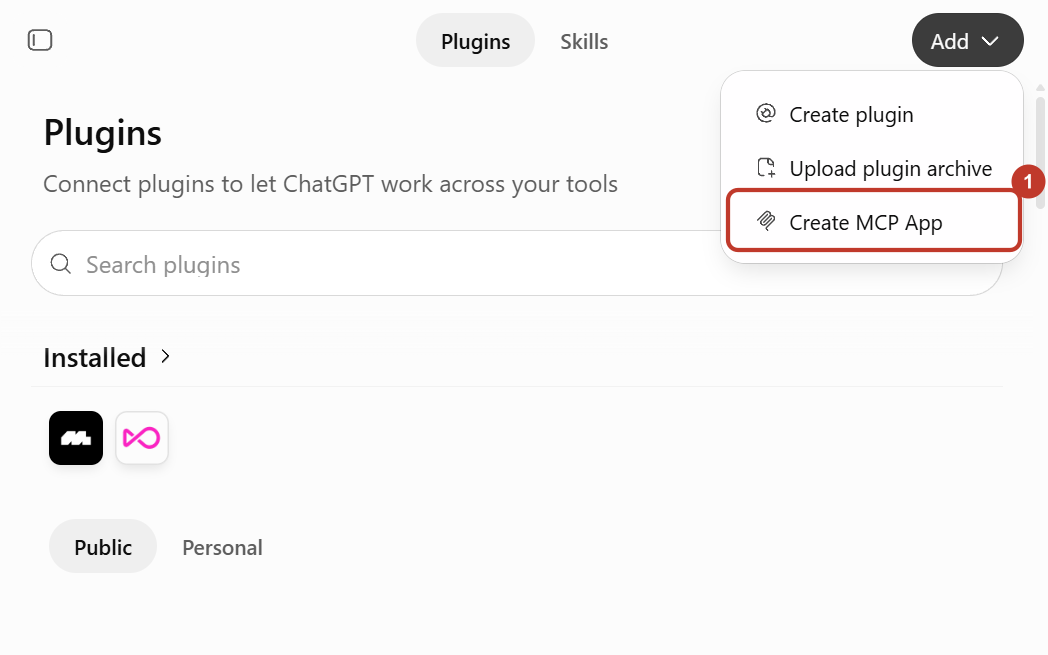
- Go to chatgpt.com/plugins. Click Add at the top right. Then click Create MCP App.
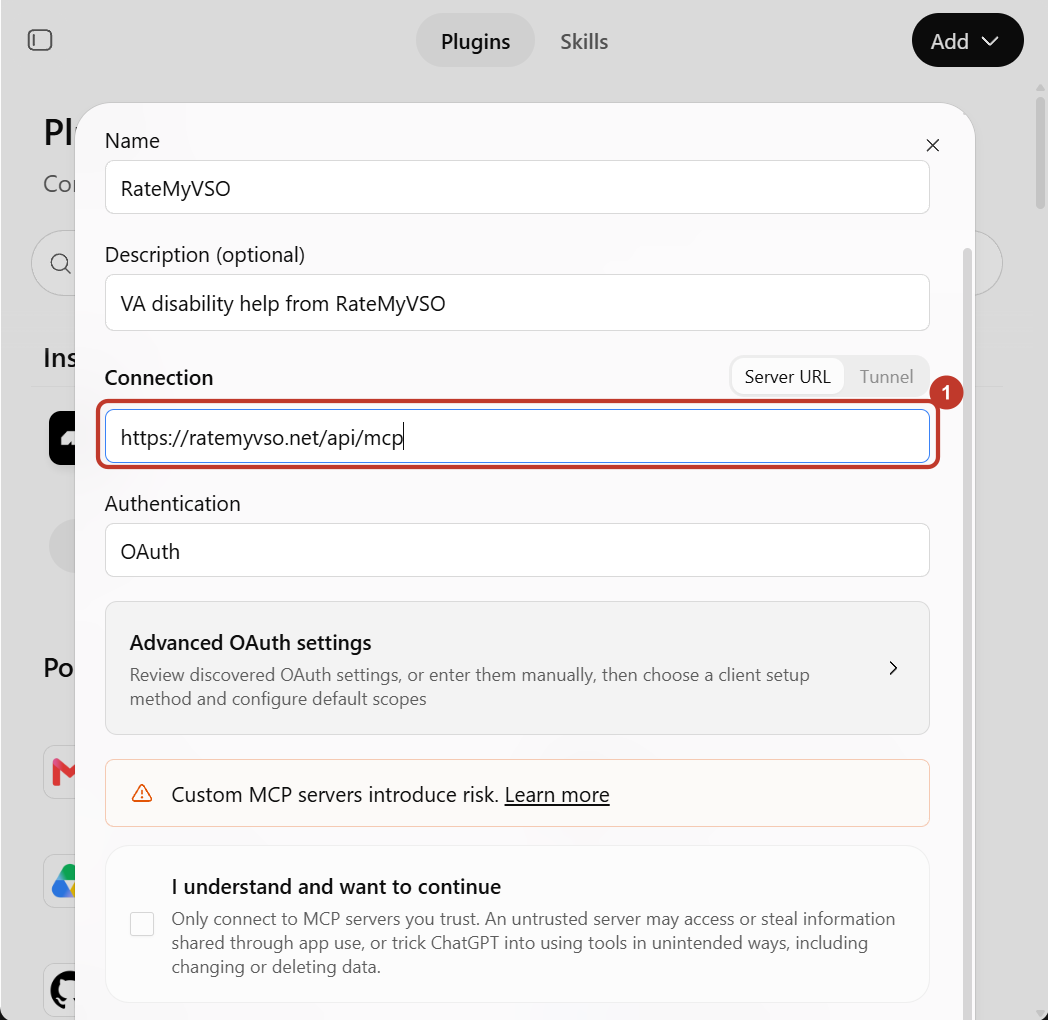
- In the Name box, type RateMyVSO. In the Description box, type: VA disability help from RateMyVSO.
- Copy this web address. Paste it in the box under Connection:
https://ratemyvso.net/api/mcp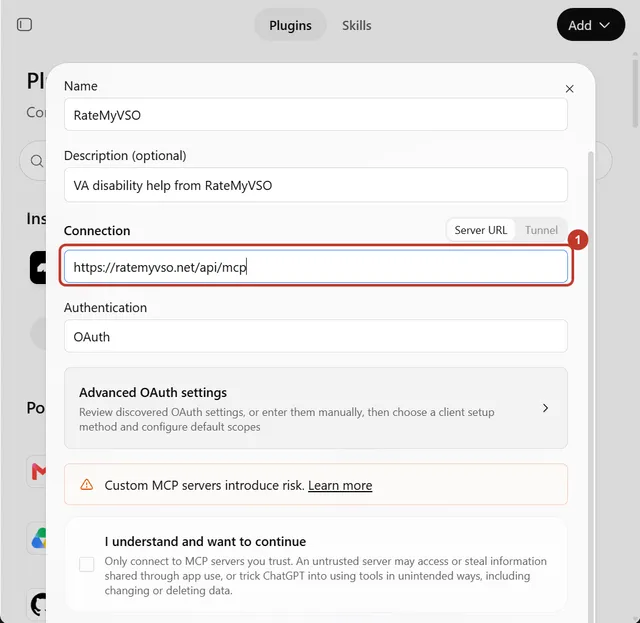
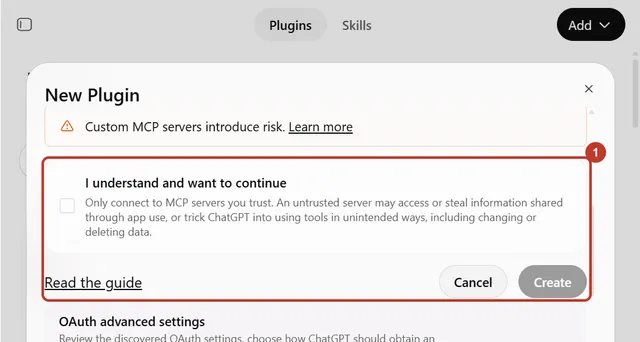
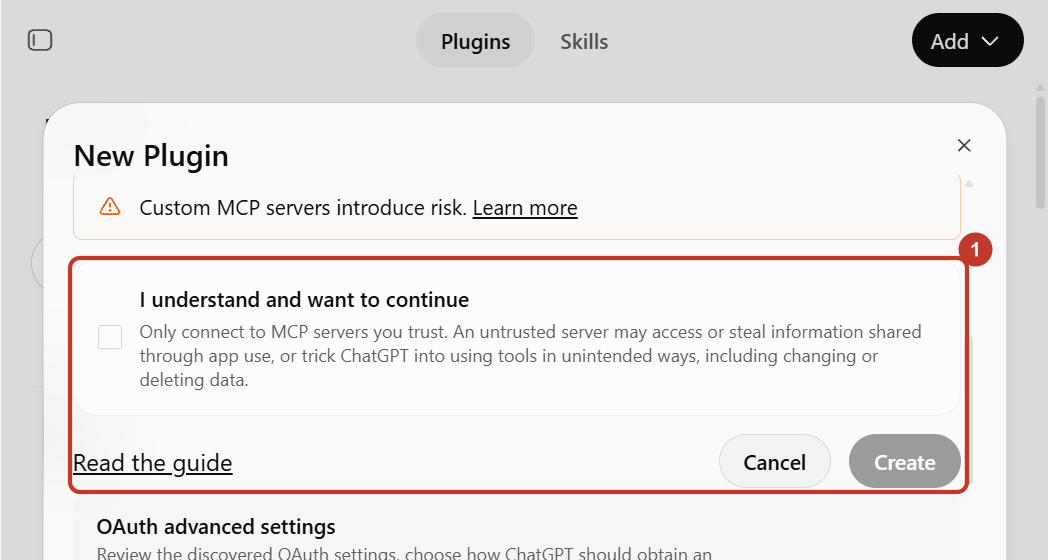
- Leave Authentication set to OAuth. Tick I understand and want to continue. ChatGPT shows this for every app it did not make. RateMyVSO only reads. It cannot change a thing. Click Create.
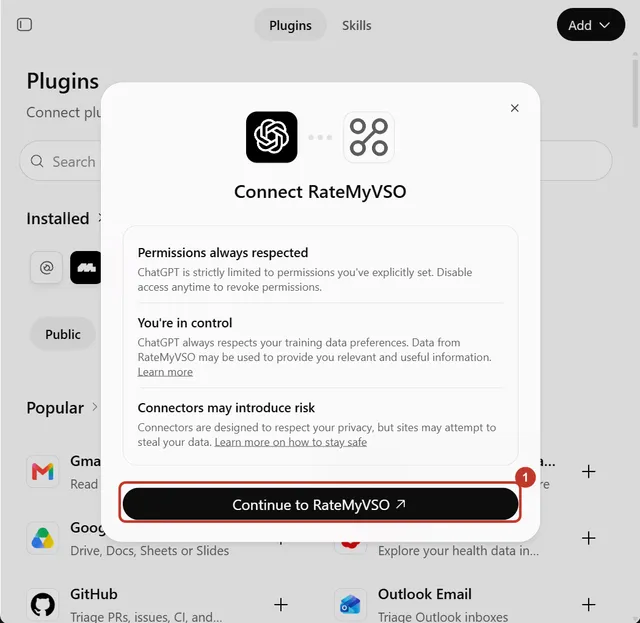
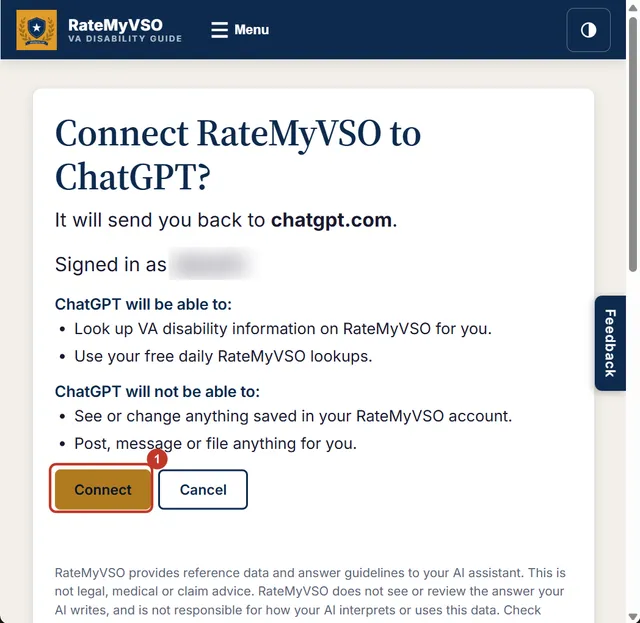
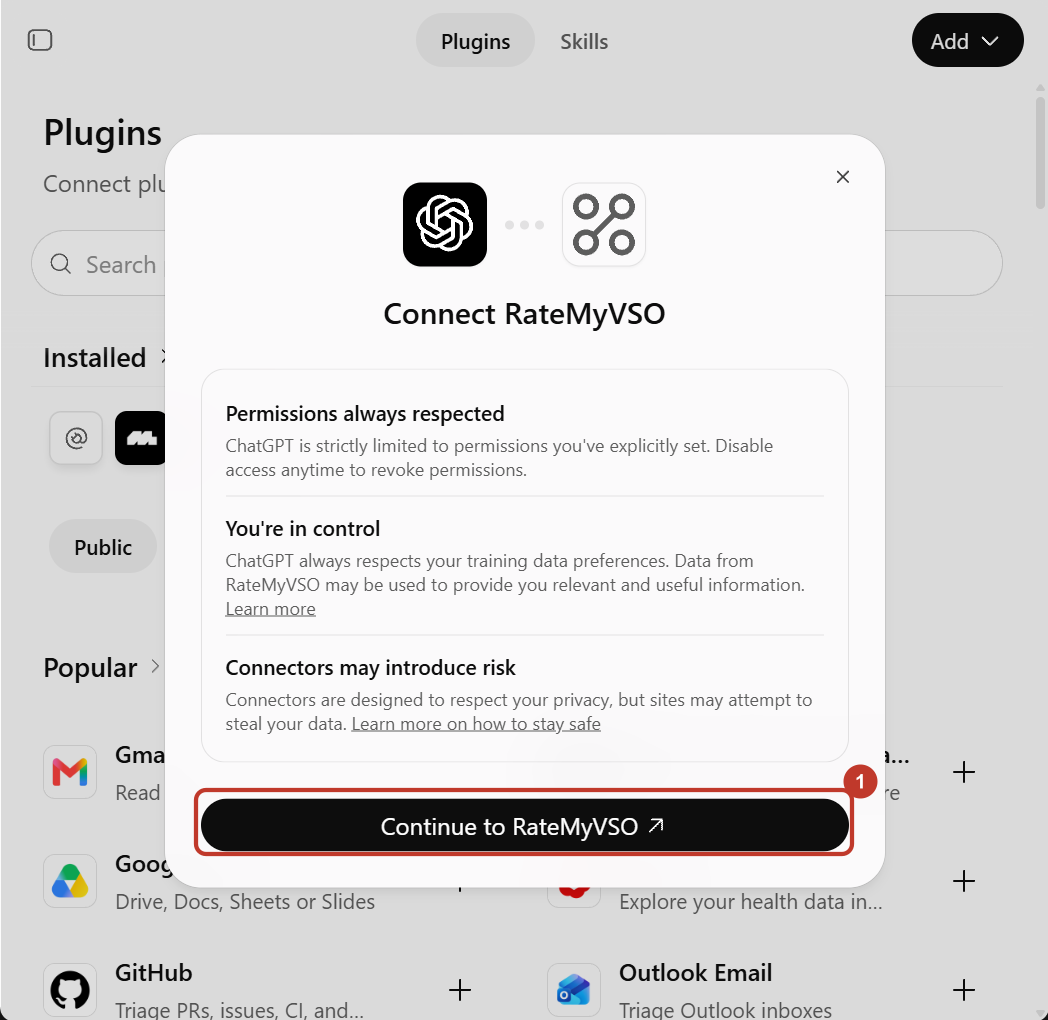
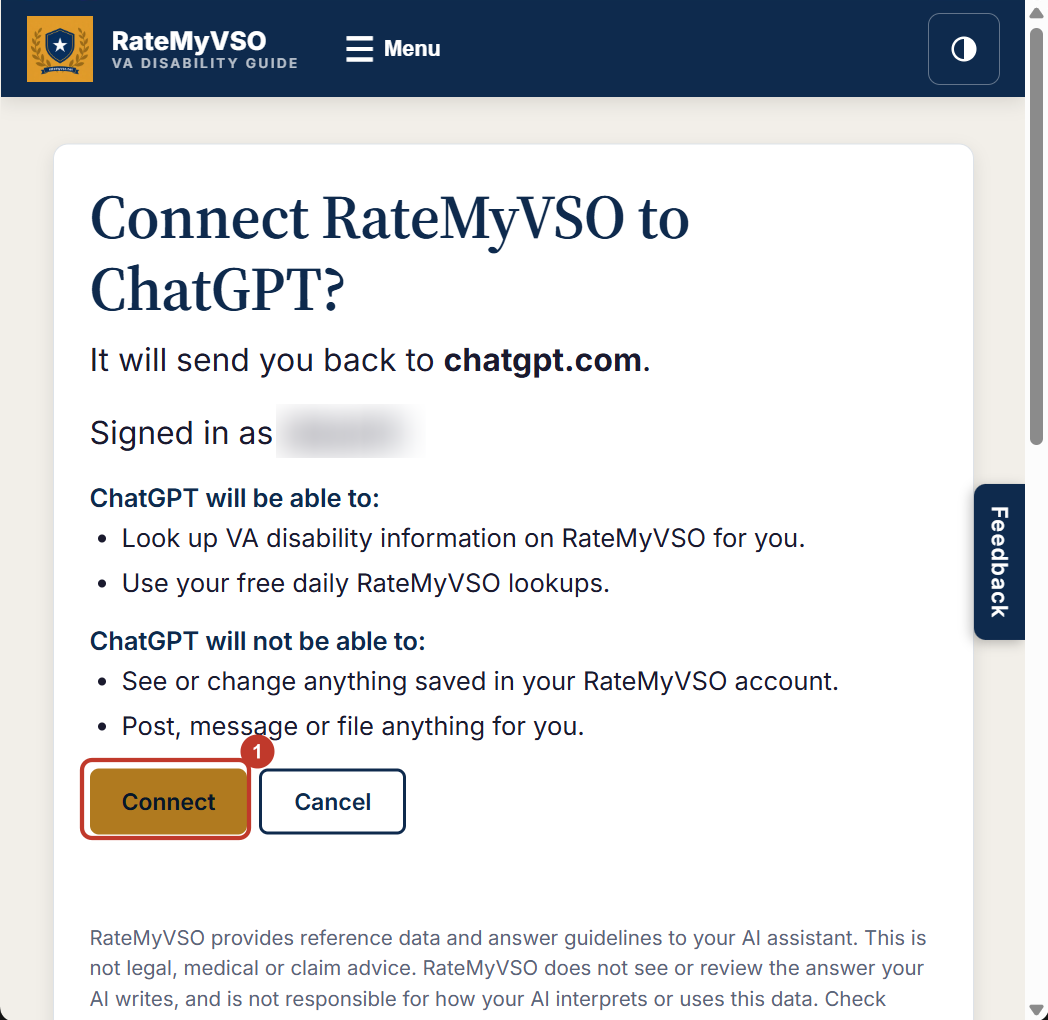
- Click Continue to RateMyVSO. A RateMyVSO page opens. Sign in with Google or Apple.
- Click Connect. You go back to ChatGPT. You are done.
Don't see Create MCP App? Open Settings, then Security and login, and turn on Developer mode. Then try again. On a work or school account, your admin may need to allow it first.
Use it in ChatGPT
- Start a new chat.
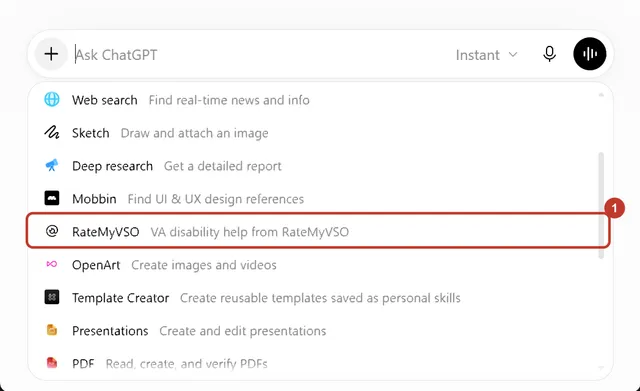
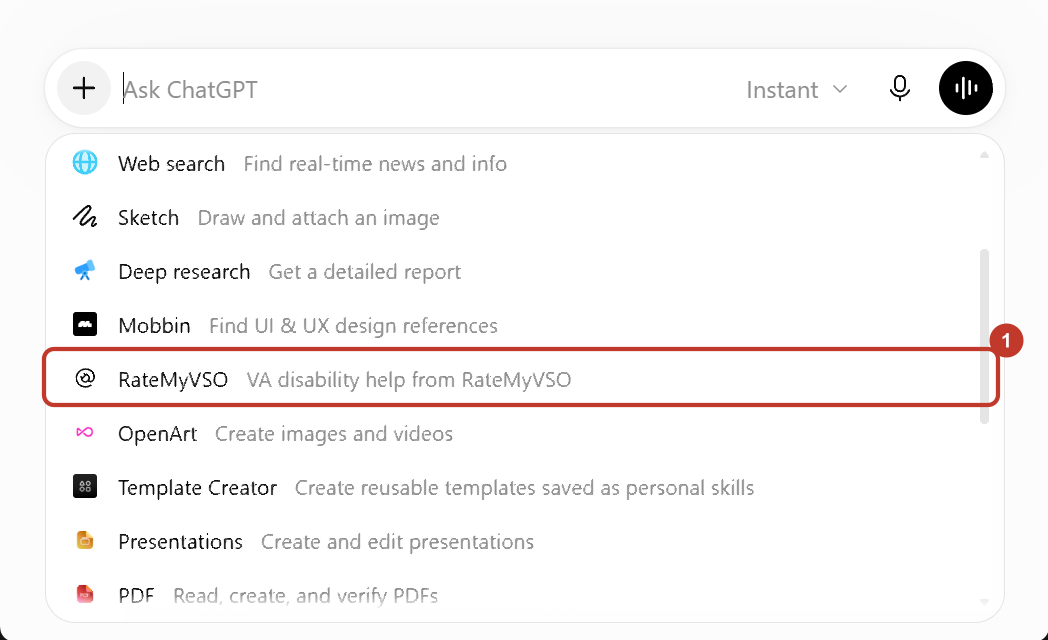
- Click the + button by the message box. Click RateMyVSO. You may need to scroll down the list.
- Type your question. You can use one of the questions below.
- If ChatGPT asks to use RateMyVSO, click Allow.
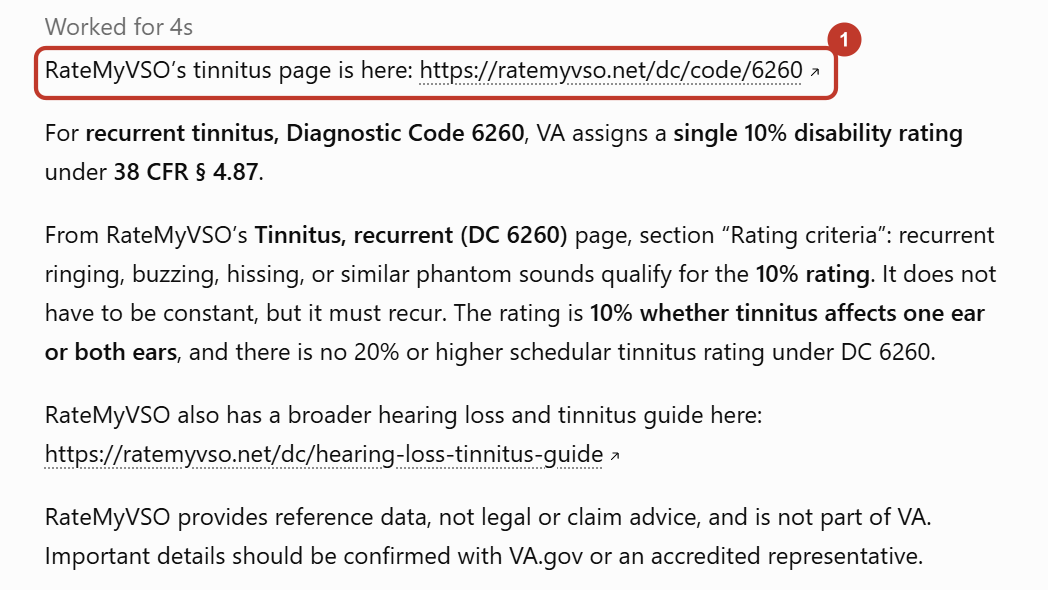
It worked if: the answer has links to ratemyvso.net.
Turn it off
Sign in to RateMyVSO, open your Profile, then Account and settings, then Connected apps. Click Disconnect next to ChatGPT. You can also remove RateMyVSO in ChatGPT, under Settings, then Plugins.
Add RateMyVSO to Claude
Before you start: Any Claude plan works, even the free one. The free plan lets you add one connector. On a Claude Team or Enterprise plan, ask your Owner to add RateMyVSO first. Then you only click Connect.
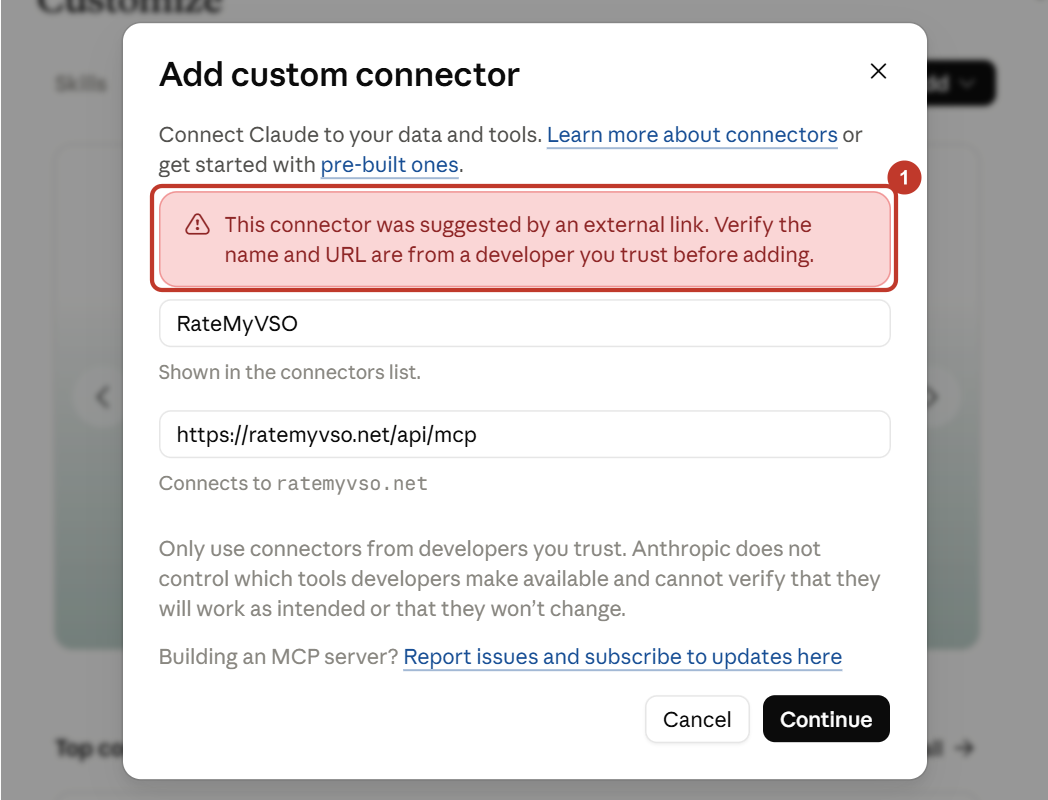
The button opens Claude with the boxes filled in. Claude shows a red note that the link came from another website. That is normal. Check that the web address is https://ratemyvso.net/api/mcp. Then start at step 5.
- Go to claude.ai on your computer. Sign in. The Claude desktop app works too.
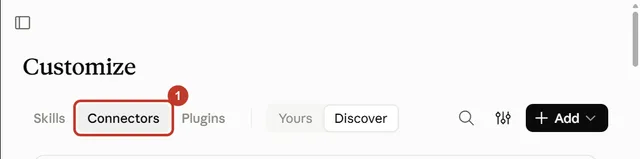
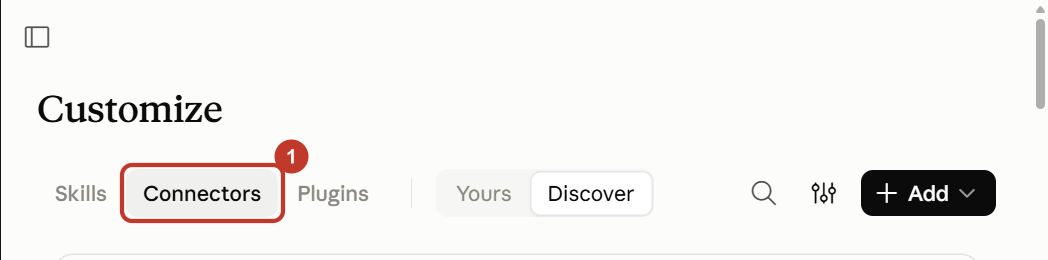
- Click Customize in the menu on the left. Then click Connectors.
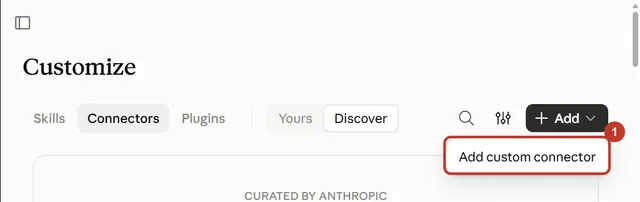
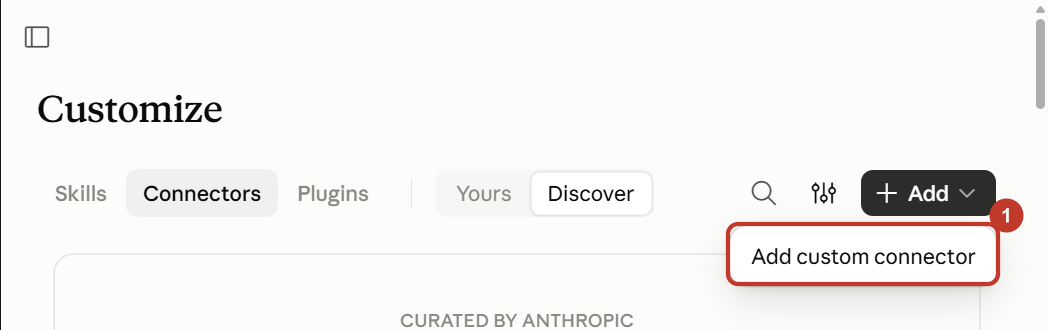
- Click Add. Then click Add custom connector.
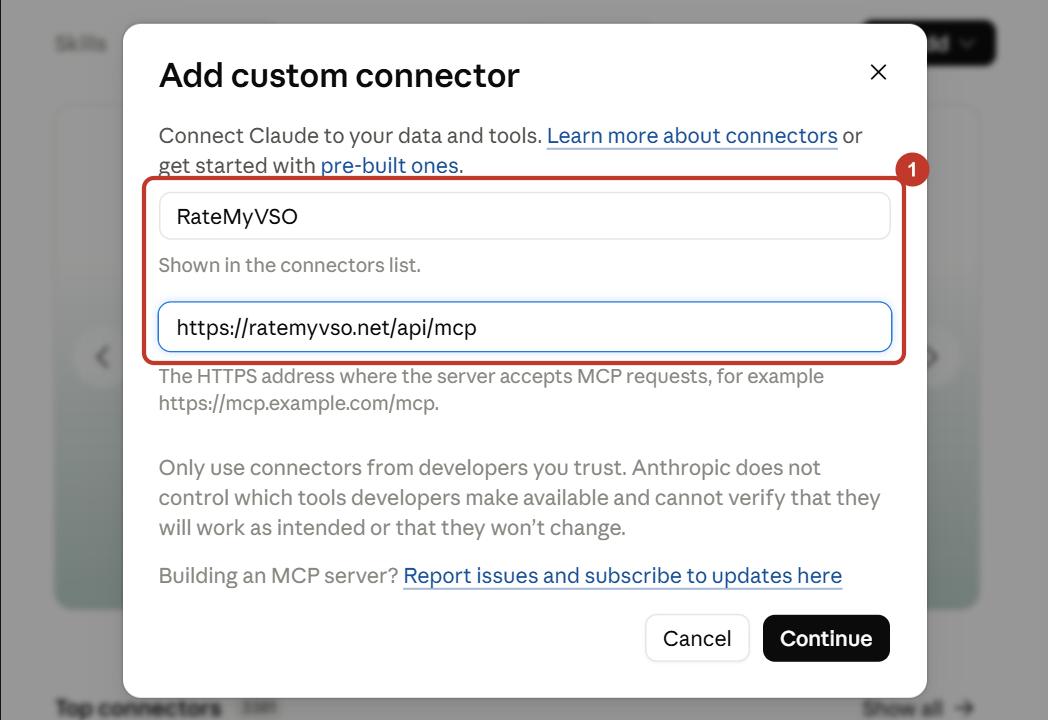
- Type RateMyVSO in the Name box. Copy this web address. Paste it in the MCP server URL box:
https://ratemyvso.net/api/mcp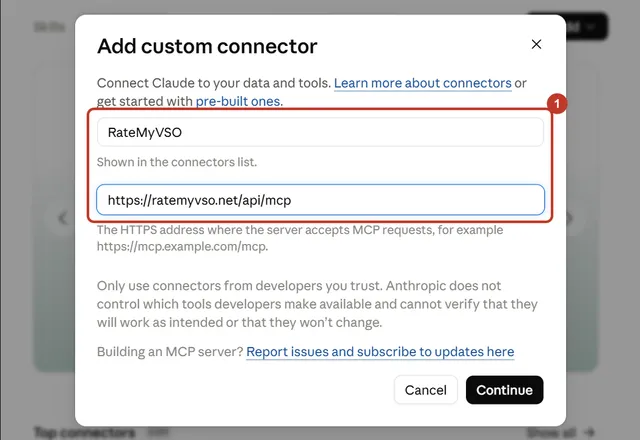
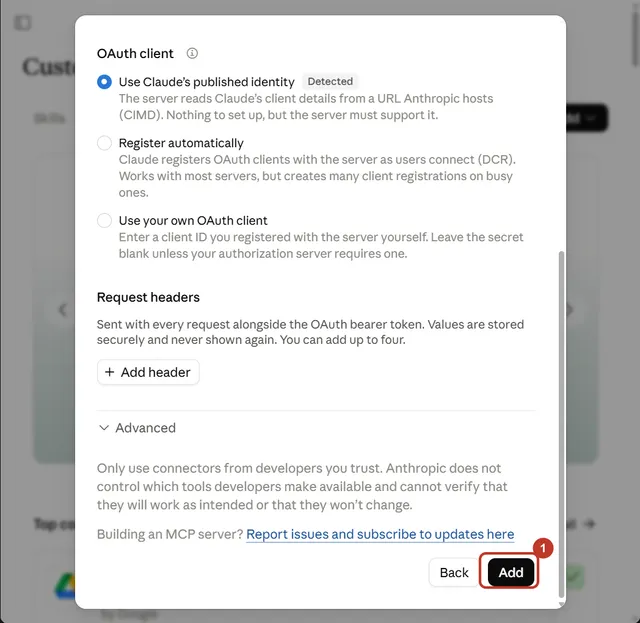
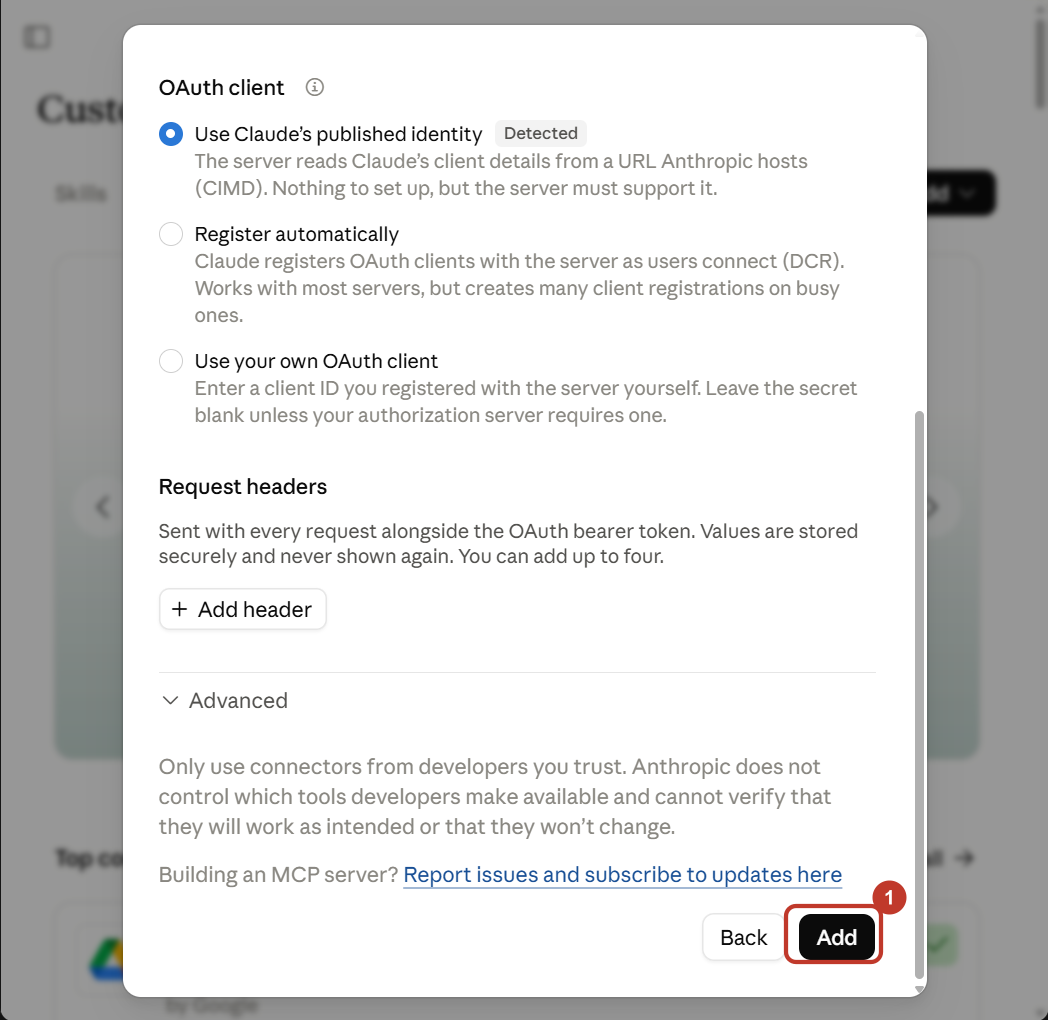
- Click Continue. Leave the choices as they are. Scroll down and click Add.
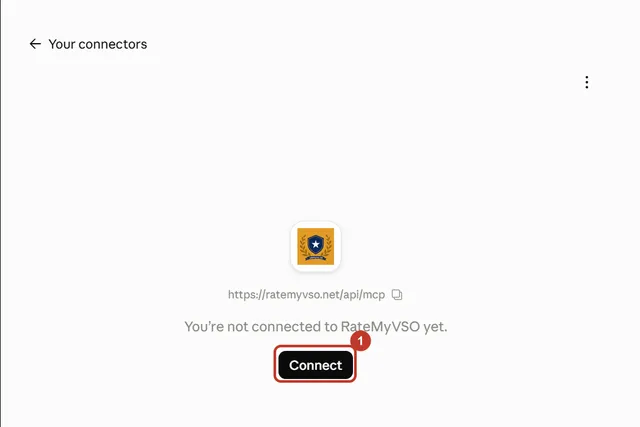
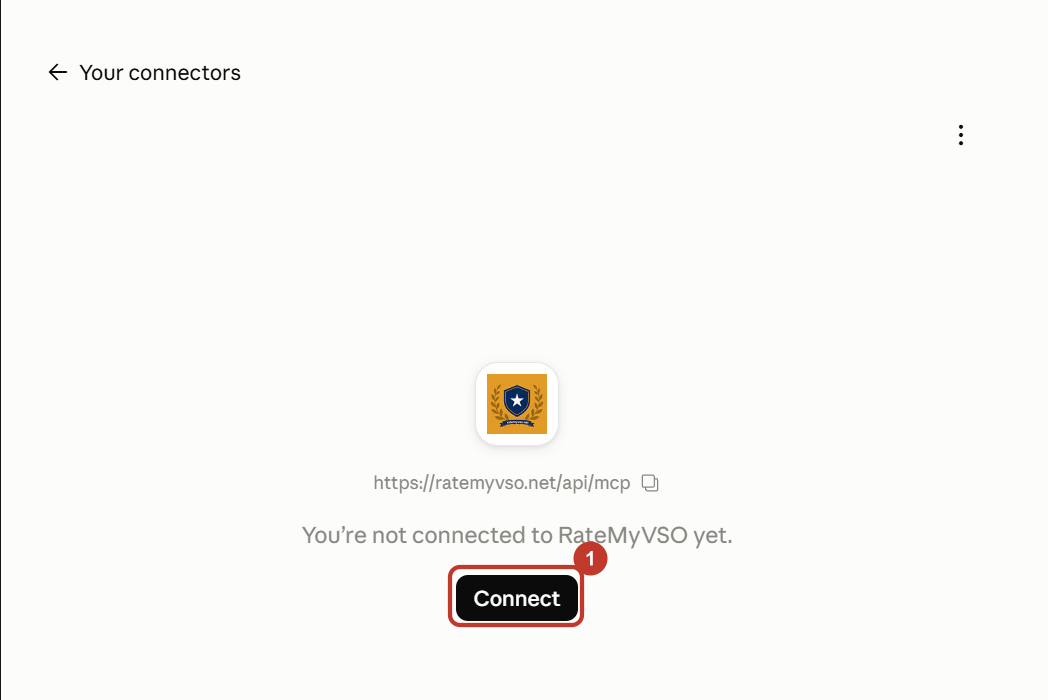
- Click Connect. A RateMyVSO page opens.
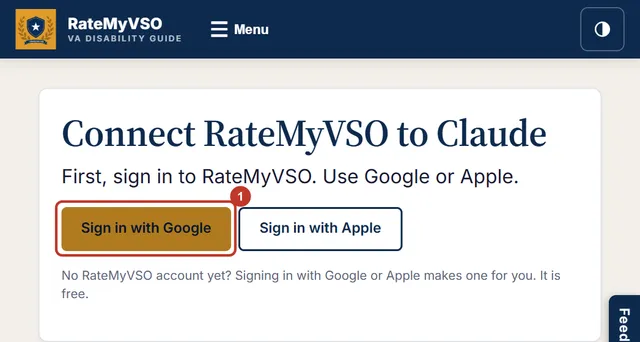
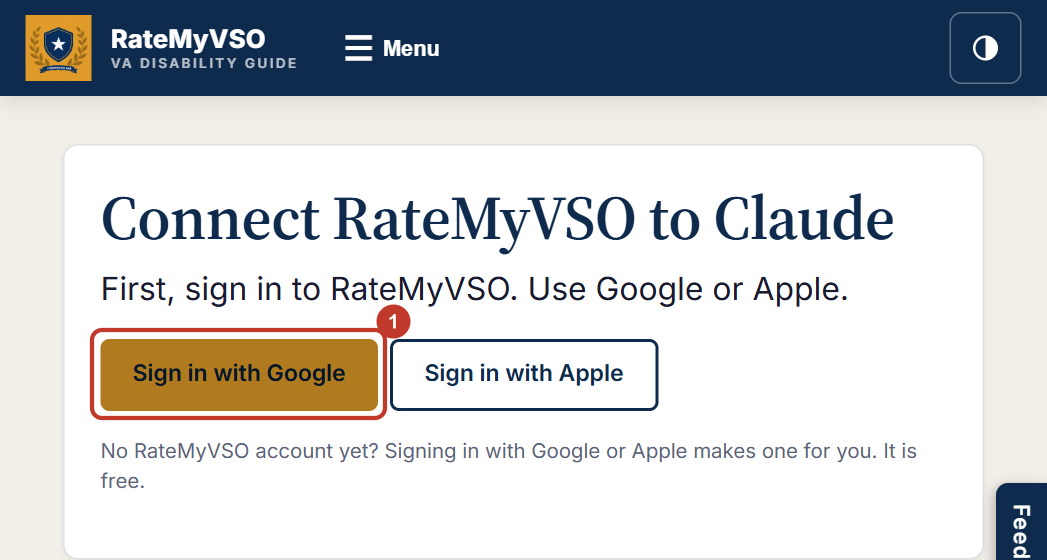
- Sign in with Google or Apple. Then click Connect. You go back to Claude. RateMyVSO now has a check mark.
Use it in Claude
- Start a new chat.
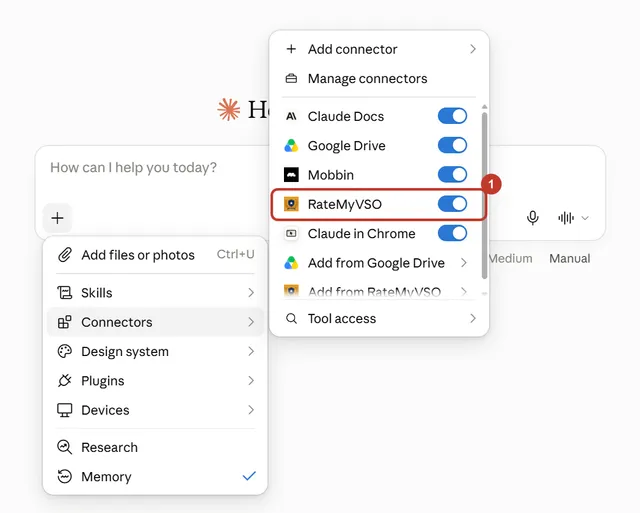
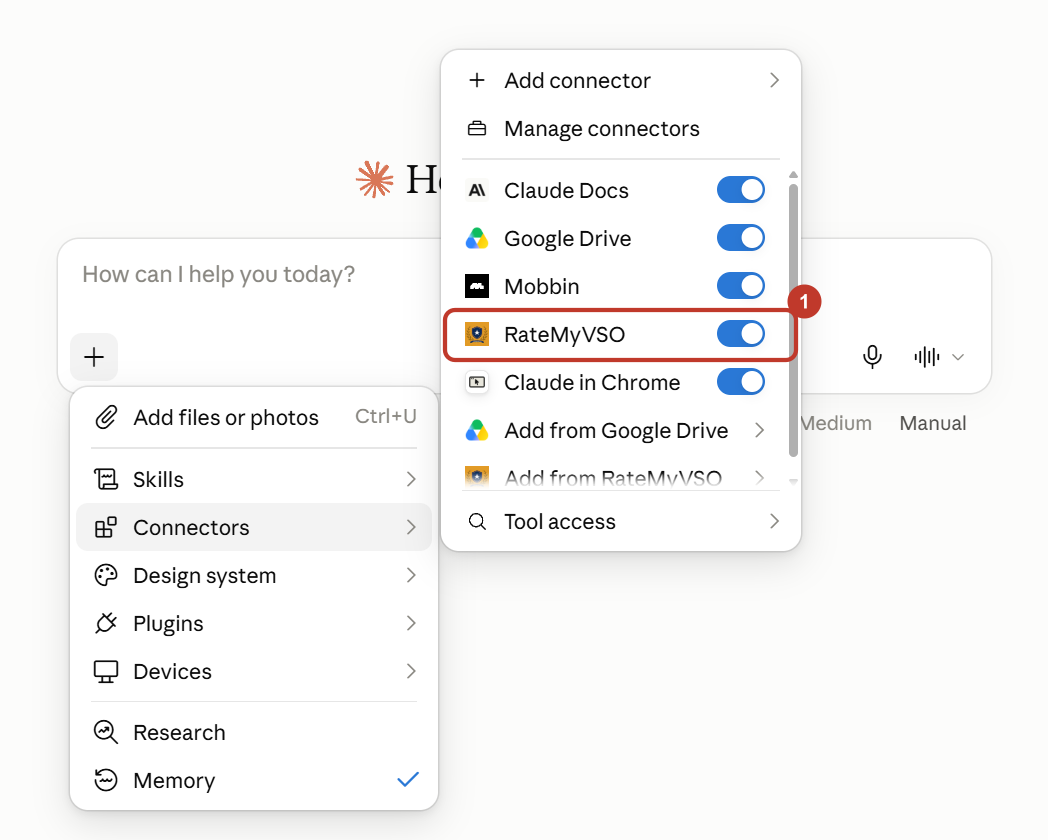
- Click the + button. Move your mouse over Connectors. Check that RateMyVSO is turned on.
- Type your question. You can use one of the questions below.
- If Claude asks to use RateMyVSO, click Always allow.
It worked if: the answer says Used RateMyVSO and has links to ratemyvso.net.
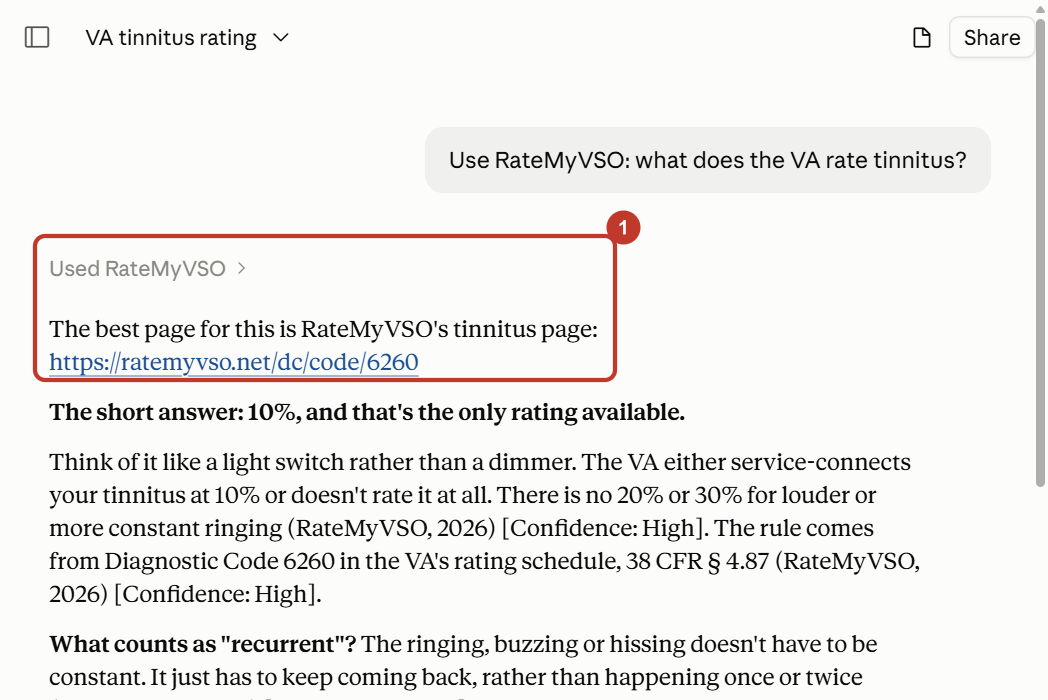
On your phone
Open the Claude app. Sign in with the same Claude account. RateMyVSO is already there. Turn it on with the + button.
Turn it off
Sign in to RateMyVSO, open your Profile, then Account and settings, then Connected apps. Click Disconnect next to Claude. You can also remove RateMyVSO in Claude, under Customize, then Connectors.
Add RateMyVSO to Claude Code
Claude Code is for people who use a terminal. If that is not you, use the Claude tab.
- Open a terminal. Run this:
claude mcp add --transport http ratemyvso https://ratemyvso.net/api/mcp - Start Claude Code. Type /mcp and press Enter.
- Pick ratemyvso. Pick Authenticate. Your web browser opens.
- Sign in with Google or Apple. Click Connect.
- Ask a VA question. You can also type /mcp__ratemyvso__ask and then your question.
Already use a RateMyVSO key? It still works. You only need to agree to the new AI Connector terms once, on your RateMyVSO Profile.
Add RateMyVSO to Codex
- Open a terminal. Run this:
codex mcp add ratemyvso --url https://ratemyvso.net/api/mcp - Then run this:
codex mcp login ratemyvsoYour web browser opens. - Sign in with Google or Apple. Click Connect.
- Start Codex. Ask a VA question.
Questions to try
- Use RateMyVSO: what does the VA rate tinnitus?
- Use RateMyVSO: is sleep apnea secondary to PTSD?
- Use RateMyVSO: what helps a migraine claim?
Common questions
Is this free?
Yes. RateMyVSO is free. You get 30 research lookups and 200 condition lookups every 24 hours. Your ChatGPT or Claude plan is separate.
What can the app see?
Only what RateMyVSO sends it: our guides, VA codes and Board of Veterans' Appeals data. It cannot see anything saved in your RateMyVSO account.
Does RateMyVSO see my chats?
No. RateMyVSO only sees the question your app sends when it looks something up. That question can hold health details you typed. We save it with your account for 90 days, then delete it. We try to remove things like Social Security numbers first, but that is not perfect. So leave out your name and other personal details.
Why Google or Apple?
It keeps accounts real. That keeps the free lookups fair for everyone.
It says I used all my lookups.
Your lookups come back over the next 24 hours. Try again later.
It says the connector is being tested.
Right now only invited accounts can connect. It will open to everyone soon.
Can it file my claim or tell me what to do?
No. It gives you information. For help with your own claim, talk to an accredited representative. You can find one on our Find a Representative page.
How do I turn it off?
In your app, disconnect RateMyVSO. Or sign in to RateMyVSO, open your Profile, then Account and settings, then Connected apps, and click Disconnect.